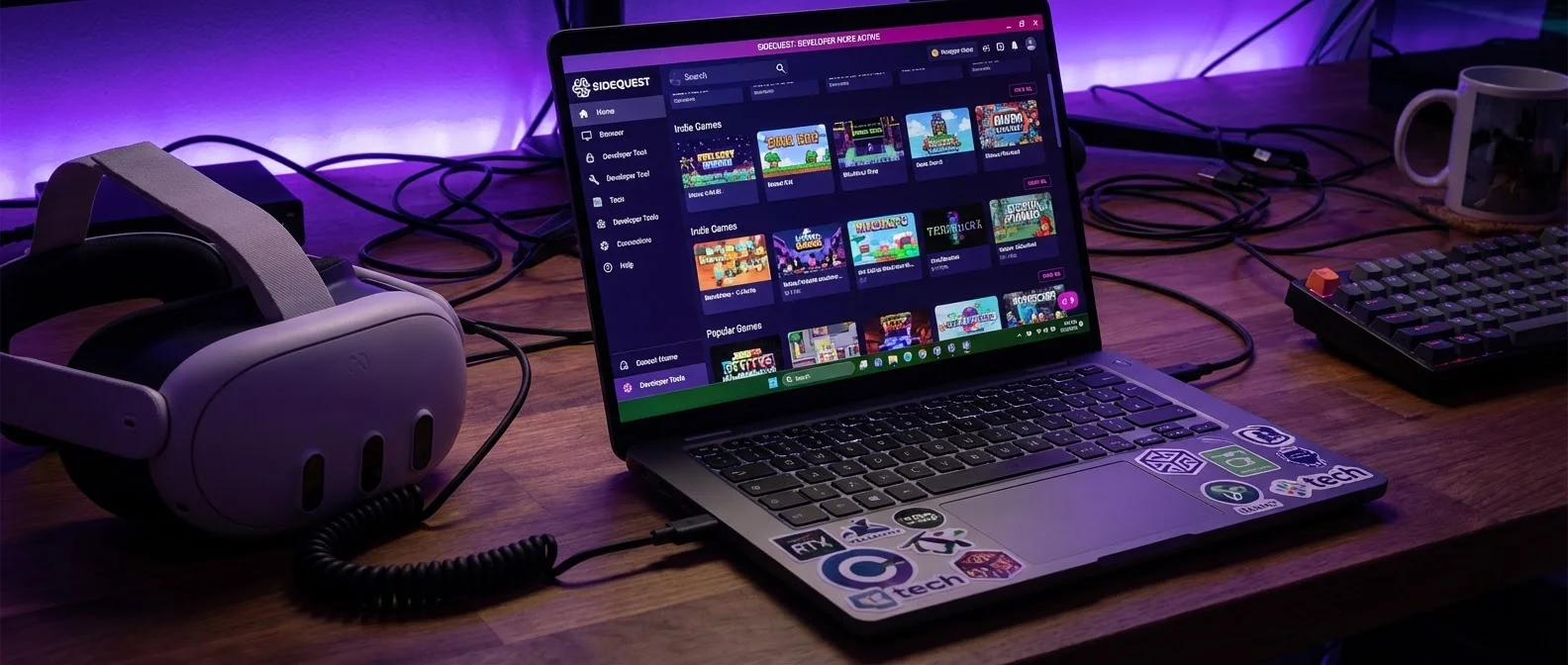
The Meta Quest offers thousands of apps through the official Meta Store, but there's an entire ecosystem of indie games, experimental apps, and beta versions you'll never find there. The solution? SideQuest — the most popular sideloading platform for VR headsets. In this comprehensive guide, you'll learn exactly what SideQuest is, why you need it, and how to install apps on your Quest step by step.
📖 Read more: 20 Best Meta Quest 3 Games 2026: Ultimate VR Gaming Guide
What Is SideQuest?
SideQuest is an independent VR content distribution platform designed primarily for Meta Quest headsets (Quest 2, Quest 3, Quest 3S, Quest Pro). It was created in 2019 by Shane Harris and Orla Harris as a response to the strict curation policies of the official Oculus Store.
Think of it as an alternative app store that allows you to install applications directly onto your headset — a process known as sideloading. Unlike the official store, SideQuest doesn't require strict review processes, allowing independent developers to distribute their projects freely.
Why Does SideQuest Exist?
Meta applies very strict criteria to the official Quest Store. Many quality indie games and experimental applications get rejected or are never submitted at all. SideQuest bridges this gap, giving users access to content that would otherwise never be available.
Why Should You Use SideQuest?
Indie Games & Demos
Access thousands of independent games, prototypes, and demos that don't exist on the official store. Discover new titles before they go mainstream.
Beta Versions
Try beta versions of popular games before they officially release. Become an early tester and influence development with your feedback.
Custom Settings
Adjust your Quest's resolution, texture size, refresh rates, and other hidden settings that aren't accessible through the standard interface.
Free Content
The vast majority of content on SideQuest is completely free. Some developers accept donations, but using the platform itself costs nothing.
Step 1: Enable Developer Mode
Before you install anything through SideQuest, you need to enable Developer Mode on your Quest. This is required to allow sideloading.
📖 Read more: Mixed Reality: Passthrough MR Guide 2026
Create a Developer Account
- Go to the Meta Developer Dashboard (developer.oculus.com) via your web browser
- Log in with the same Meta account you use on your Quest
- Create a new “Organization” — give it any name you like
- Accept the Developer Terms
- You may need to verify your account with a credit card or phone number
Enable on the Headset
- Open the Meta Quest app on your phone (Android or iOS)
- Go to Menu → Devices
- Select your headset
- Tap Headset Settings → Developer Mode
- Toggle it to ON
- Restart your Quest
Important!
After enabling Developer Mode, every time you connect your Quest to a computer, a popup will appear inside the headset asking you to approve the USB debugging connection. Always tap “Allow” and check the “Always allow” box.
Step 2: Install SideQuest
SideQuest is available in three versions. Choose the one that suits your needs:
SideQuest Desktop (Advanced)
The full version for Windows, Mac, or Linux. Connect your Quest via USB-C cable to install apps, manage files, and adjust custom settings. Ideal for power users.
SideQuest Mobile (Easy Installer)
For Android phones. Install apps directly from your phone via Wi-Fi or USB. Simpler process with fewer advanced features.
SideQuest VR (Standalone)
An app that runs directly inside the Quest! Browse the store, download App Lab apps, and discover new content without a computer. Limited to App Lab content.
Installing the Desktop Version
- Download SideQuest from sidequestvr.com
- Install the application on your computer
- Connect your Quest via USB-C cable (the charging cable works)
- Inside the Quest, approve the USB debugging connection
- SideQuest will automatically detect your headset — you'll see a green dot in the top right corner
Step 3: Install Apps via Sideloading
Now that you're connected, installing apps is incredibly easy:
Method 1: Via the SideQuest Store
- Open SideQuest Desktop with your Quest connected
- Browse the store or search for a specific app
- Click "Install to Headset"
- Wait for the installation to complete
- Find the app on your Quest: App Library → Unknown Sources
Method 2: Via APK File
- Download the .apk file to your computer
- In SideQuest, click the "Install APK from folder" icon (top right)
- Select the APK file
- Installation begins automatically
- Find the app under Unknown Sources
Where Do I Find Sideloaded Apps?
Apps installed via SideQuest don't appear in the main menu. Go to your App Library, tap the dropdown in the top right corner, and select "Unknown Sources". That's where you'll find all your sideloaded apps.
📖 Read more: Star Wars VR: Every Game on the Complete List
Best SideQuest Apps & Games in 2026
Here's a selection of the most popular and noteworthy titles you can find on SideQuest:
Lambda1VR (Half-Life VR)
The legendary Half-Life fully ported to VR. A native Quest port that runs without a PC. You'll need the original game files from Steam.
QuestCraft (Minecraft VR)
Play Minecraft in VR on your Quest with full motion controls. An open source project with multiplayer server support.
Pavlov Shack
A competitive FPS shooter with gameplay reminiscent of Counter-Strike. Started as a SideQuest exclusive before getting an official release.
Physics Playground
A sandbox physics game where you experiment with objects, weapons, and physics. Perfect for exploring what VR is truly capable of.
App Lab vs SideQuest: What's the Difference?
Meta created App Lab in 2021 as a “middle ground” between the official Store and sideloading. But what does this mean in practice?
App Lab
Meta's platform for apps that don't meet the strict main store criteria but pass a basic safety review. They install normally via a link — no Developer Mode required. They appear in your regular App Library.
SideQuest Sideloading
Completely independent from Meta. Requires Developer Mode. Apps are installed as APK files and appear under Unknown Sources. Greater variety, less curation, more experimental content.
Important: Many apps start their life on SideQuest, then move to App Lab, and eventually launch on the official Quest Store. It's a development pipeline that benefits both developers and gamers.
📖 Read more: VR and Children: Ages, Risks, Safety
Safety Considerations
Sideloading offers freedom, but it also requires responsibility. Here's what you should keep in mind:
- Only download from trusted sources: The official SideQuest store, developer GitHub repos, and well-known VR communities
- Check reviews: Before installing anything, read the reviews and comments from other users
- Sideloaded apps aren't vetted by Meta: There's no safety guarantee. If something looks suspicious, avoid it
- Your warranty stays intact: Developer Mode and sideloading do not void your Quest's warranty
- Removal is easy: If something doesn't work properly, you can uninstall any sideloaded app through SideQuest or the Quest settings
- Potential instability: If you change custom settings (e.g., very high resolution), it may cause overheating or low framerates
"SideQuest has become an integral part of the Quest ecosystem. Many of the most popular Quest Store games started as SideQuest projects — Beat Saber mods, Pavlov, and dozens more."
Bonus: Custom Settings via SideQuest
One of the most powerful features of SideQuest Desktop is the ability to change hidden Quest settings:
Texture Resolution
Increase or decrease texture size for better image quality or better performance respectively.
Refresh Rate
Set the refresh rate to 72Hz, 90Hz, or 120Hz based on your needs. Higher rates mean a smoother experience.
Video Capture
Adjust the bitrate and resolution of video recordings for higher quality captures from your Quest.
Fixed Foveated Rendering
Adjust the FFR level for a better trade-off between visual quality and performance in your games.
Conclusion
SideQuest is an essential tool for every Meta Quest owner who wants to fully unlock their headset's potential. From indie games and experimental apps to custom settings and performance tweaks, the world of sideloading opens doors that the official store keeps closed.
The installation process is simpler than ever — especially with the standalone versions for mobile and VR. If you haven't tried SideQuest yet, now is the perfect time. An entire ecosystem of VR content is waiting for you.