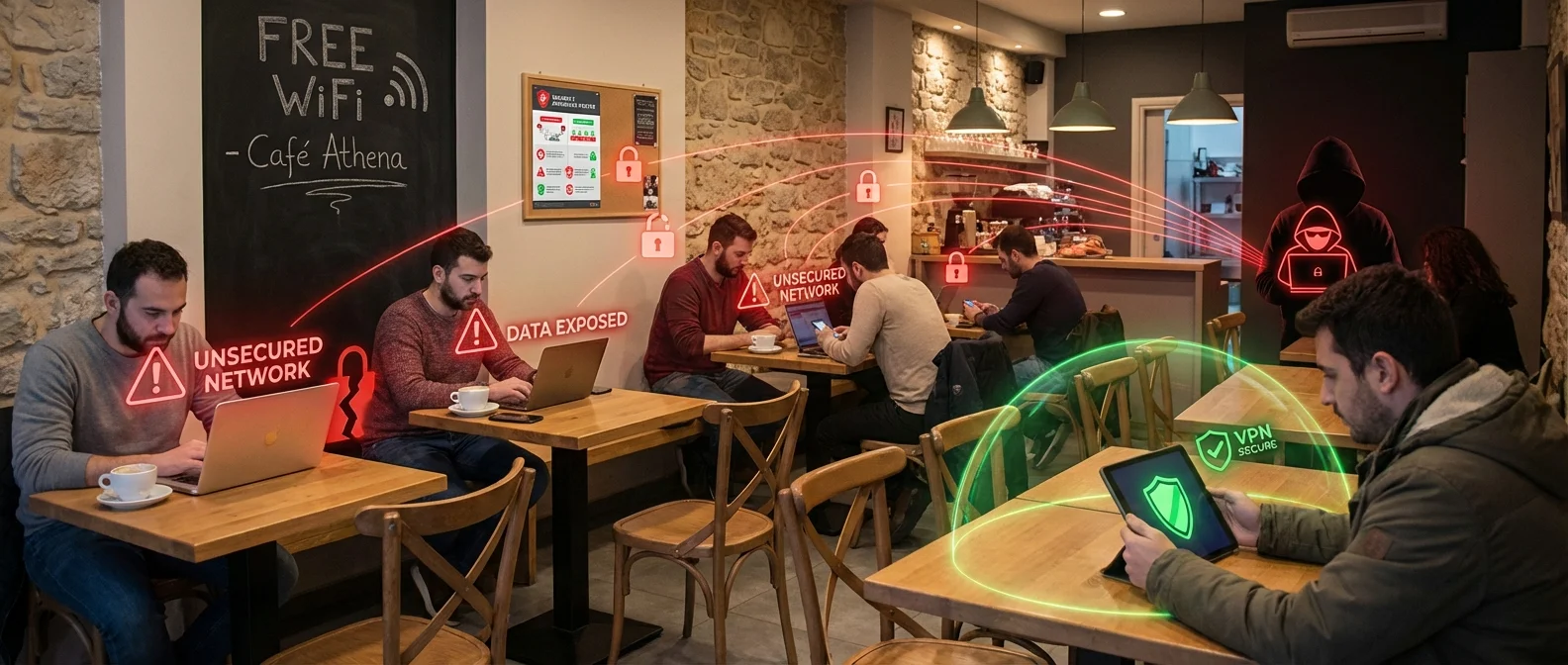
Every time you connect to a “free WiFi” network at a café, airport, or hotel, you're essentially opening a door to your personal data. Public WiFi connections are incredibly convenient — but also incredibly insecure. In this guide, we break down the real dangers, the techniques attackers use, and 8 effective ways to protect yourself in 2026.
📖 Read more: VPN 2026: Why You Need One Today
📡 Why Public WiFi Is Dangerous
Most public WiFi hotspots operate without encryption — in “open mode.” This means anyone on the same network can, with the right tools, monitor and record the data you send and receive. Passwords, emails, banking details — everything is transmitted over the air in plain text.
Even networks that require a password (e.g., in hotels) often use the same password for all users. This means WPA2 encryption doesn't protect users from each other — only from outside observers. A malicious user on the same network can see everything.
Why is this problem so widespread?
WiFi access points are configured in encryption-free (open) mode by default. Many business owners never change this setting, leaving their customers exposed. According to 2025 data, over 60% of public WiFi networks in European cities lack proper encryption.
The FTC (Federal Trade Commission) explicitly warns consumers about the dangers of public WiFi and recommends using a VPN as a basic protective measure. Similarly, ENISA (the European Union Agency for Cybersecurity) emphasizes that wireless network security remains one of the weakest links in citizens' digital lives.
🕵️ The 6 Main Threats
The techniques cybercriminals use on public WiFi don't require expensive equipment or specialized knowledge. A laptop, a few free tools, and minimal technical know-how are all it takes. Here are the 6 most common types of attacks:
Man-in-the-Middle (MITM)
The attacker positions themselves “between” you and the server. They can see, record, or even alter your data in real time without you ever noticing. This is the most classic and dangerous type of attack.
Evil Twin Attack
A fake WiFi hotspot is created with a name identical to the legitimate one (e.g., “CafeWiFi_Free”). You connect thinking it's the real network, but every packet passes through the hacker's device.
Packet Sniffing
Tools like Wireshark can “sniff” all unencrypted data packets on a network. Emails, passwords, photos — everything is visible on an open WiFi network.
SSL Stripping
The attacker downgrades your connection from HTTPS to HTTP. Your browser thinks the site doesn't support encryption, when in reality it was artificially stripped away.
DNS Spoofing
The hacker forges DNS responses before the correct one arrives. You type “mybank.com” but get redirected to a convincing replica designed to steal your credentials.
Session Hijacking
Session cookie theft: the attacker “steals” your session token and gains access to your accounts (email, social media) as if they were you.
Each of these attacks can be carried out in just a few minutes. The most alarming part? The user receives no notification — there's no alarm that goes off when someone is intercepting your data.
📊 Public WiFi Attack Statistics
The numbers paint a clear picture of why using public WiFi without protection is an enormous risk. The following figures are based on 2024-2025 cybersecurity research and reflect global trends:
It's worth noting that only 1 in 4 users employs any form of protection when connecting to free WiFi. The rest are fully exposed to every type of attack — from simple sniffing all the way to complete identity theft.
🔓 How a Man-in-the-Middle Attack Works
The Man-in-the-Middle (MITM) attack is the most common and most dangerous type of cyberattack on public WiFi. The attacker literally positions themselves “in the middle” — between you and the server of the site you're visiting. Here's a step-by-step breakdown of how it works:
MITM Attack Steps
- Joining the network: The attacker connects to the same public WiFi network as you — at the same café, airport, or hotel.
- ARP Spoofing: They send fake ARP packets across the network, tricking the router into thinking the attacker is you, and your device into thinking the attacker is the router.
- Traffic interception: Now all your data traffic flows through their device. They can see every request, every password, every message.
- SSL Stripping (optional): They downgrade HTTPS connections to HTTP so they can read even encrypted data. You see the page as normal — but without the padlock icon.
- Data extraction: They capture passwords, emails, banking details — then use them or sell them on the dark web.
The most frightening aspect of a MITM attack is that it's completely invisible. The user browses websites normally, sends emails normally, makes purchases normally. There's no indication whatsoever that someone is sitting “in between.” That's exactly why prevention is far more important than detection.
Tools Used by Attackers
The tools for MITM attacks are free and open source: Wireshark for packet sniffing, Ettercap for ARP spoofing, sslstrip for SSL stripping, and Bettercap as an all-in-one framework. This means even a beginner can launch an attack.
🛡️ 8 Ways to Protect Yourself
The good news? Defending against the threats above doesn't require technical expertise or a big budget. A few basic practices that you can implement right away will do the job:
The 8 Rules for Staying Safe on Public WiFi
- Always use a VPN: A reliable VPN encrypts all your traffic, even on completely open networks. Trusted options: NordVPN (~€3.50/month), Mullvad (€5/month), ProtonVPN (free plan). The FTC explicitly recommends it.
- Verify HTTPS everywhere: Before entering passwords or personal information, make sure you see the padlock icon and “https://” in the address bar. Install the HTTPS Everywhere extension.
- Avoid sensitive transactions: Don't do online banking, shopping, or log into important accounts over public WiFi.
- Use mobile data instead of WiFi: Cellular data (4G/5G) is significantly more secure than public WiFi. If something is important, switch to mobile data.
- Disable auto-connect: Your phone automatically connects to known networks — and that includes fake networks with the same name (evil twin). Turn this setting off.
- Enable your firewall: Make sure your laptop's firewall is active. On macOS: System Settings > Network > Firewall. On Windows: Windows Security > Firewall.
- Use two-factor authentication (2FA): Even if someone steals your password, they can't log in without the second factor (SMS, authenticator app).
- Forget the network after use: After disconnecting, tap “Forget Network” so your device won't automatically reconnect to a potential evil twin later.
Of all these measures, using a VPN is by far the most effective. A VPN creates an encrypted “tunnel” between you and the VPN server, making your data unreadable even if someone intercepts it. It costs just a few euros per month and gives you comprehensive protection.
📋 Protection Comparison: VPN vs HTTPS vs Mobile Data
Not all protection methods are created equal. Depending on what you're doing online, some are sufficient and others aren't. The table below makes it clear what protects against what:
Protection Comparison Table
| Criteria | VPN | HTTPS Only | Mobile Data |
|---|---|---|---|
| Full traffic encryption | ✔ Yes | ⚠ Partial | ✔ Yes |
| DNS protection | ✔ Yes | ✘ No | ✔ Yes |
| Evil Twin defense | ✔ Yes | ✘ No | ✔ Yes (no WiFi needed) |
| MITM defense | ✔ Yes | ⚠ Partial | ✔ Yes |
| Cost | €3-5/month | Free | Uses data allowance |
| Connection speed | ⚠ Slight reduction | ✔ Normal | ✔ Normal (4G/5G) |
| Ease of use | ✔ Easy (1 click) | ✔ Automatic | ✔ Very easy |
| App protection (not just browser) | ✔ Yes, full | ✘ No | ✔ Yes |
The ideal solution? A combination of VPN + HTTPS + 2FA. If you don't have a VPN, at the very least use mobile data for anything sensitive. HTTPS alone isn't enough — it doesn't protect DNS queries, doesn't cover apps, and can be bypassed with SSL stripping.
💡 What WPA3 Changes
The WPA3 protocol, announced in 2018 and only now (2025-2026) becoming truly mainstream, brings significant security improvements to WiFi networks. It's gradually replacing WPA2, which was found to be vulnerable to KRACK attacks (2017).
Key WPA3 Improvements
- SAE (Simultaneous Authentication of Equals): Replaces the 4-way handshake, making offline dictionary attacks impossible
- Individualized Data Encryption: Each device gets a unique encryption key — even when sharing the same WiFi password
- Forward Secrecy: Even if a key is cracked later, previously captured data remains secure
- Protected Management Frames: Protection against deauthentication attacks used to force disconnections
- WPA3-Enterprise 192-bit: Exceptionally strong encryption for enterprise environments
With WiFi 7 (IEEE 802.11be), ratified in 2025 with speeds up to 23 Gbps, WPA3 is now mandatory on new devices. However, it will take years for equipment in public spaces to be upgraded. Until then, public WiFi networks will continue running on WPA2 or even without encryption — so personal protection (VPN, HTTPS) remains essential.
WiFi Security Timeline
WEP (1997): Easily cracked — proven insecure within a few years. WPA (2003): An improvement, but still had vulnerabilities. WPA2 (2004): Secure with a strong password, but vulnerable to KRACK (2017). WPA3 (2018+): The most secure version to date, featuring forward secrecy and individualized encryption.
⚠️ Greece: Where You're Most at Risk
In Greece, public WiFi hotspots are everywhere — especially in tourist areas. And that's precisely where the danger lies: the vast majority of these networks lack proper encryption.
Cafés and restaurants: The most common risk zones. The WiFi password is usually written on the table or the receipt — meaning it's shared by everyone. Many small businesses still use WPA2 or simple open networks with no security measures whatsoever. Larger chains (Starbucks, Everest, etc.) are slightly better but still not safe.
Airports: WiFi at Athens “Eleftherios Venizelos,” Thessaloniki (SKG), and island airports are classic targets. The large number of users, the rushed pace (connecting without thinking), and the frequent use of email and banking apps make them ideal hunting grounds for hackers.
Hotels: Even luxury hotels often use shared-password networks. Many resort-type hotels on the islands (Santorini, Mykonos, Crete) rely on simple open WiFi networks, especially in common areas (pool, lobby, restaurant).
The Riskiest WiFi Spots in Greece
- Free municipal WiFi in public squares (often with zero encryption)
- WiFi on ferries and at ports (slow connection + open networks)
- WiFi at tourist hot spots (Plaka, Monastiraki, Thessaloniki waterfront)
- Internet cafés and co-working spaces without WPA3
- Public transport (intercity buses, trains) — WiFi still in its infancy, with no security
Extra caution is needed during the summer months, when millions of tourists desperately seek out free WiFi. This “hunger” for connectivity creates ideal conditions for evil twin attacks — all it takes is a hacker setting up a “Free_Mykonos_WiFi” network and dozens of people will connect instantly, without a second thought.
🔮 Conclusion: It's Not Worth the Risk
Connecting to public WiFi without protection is like leaving your front door wide open on a busy street. Maybe nobody walks in — but if they do, they'll have access to everything. The dangers are real, well-documented, and affect every user regardless of technical skill.
The solution isn't to avoid public WiFi entirely — it's to use the right tools. A €3-5/month VPN, checking for HTTPS, disabling auto-connect, and using 2FA are enough to make you virtually immune to most attacks.
Ultimately, the real question isn't “how much does protection cost” but “how much does NOT protecting yourself cost.” With average damages of €4,900 per data theft victim, the €3-5 monthly VPN subscription looks like the most profitable investment you can make in your digital self.